
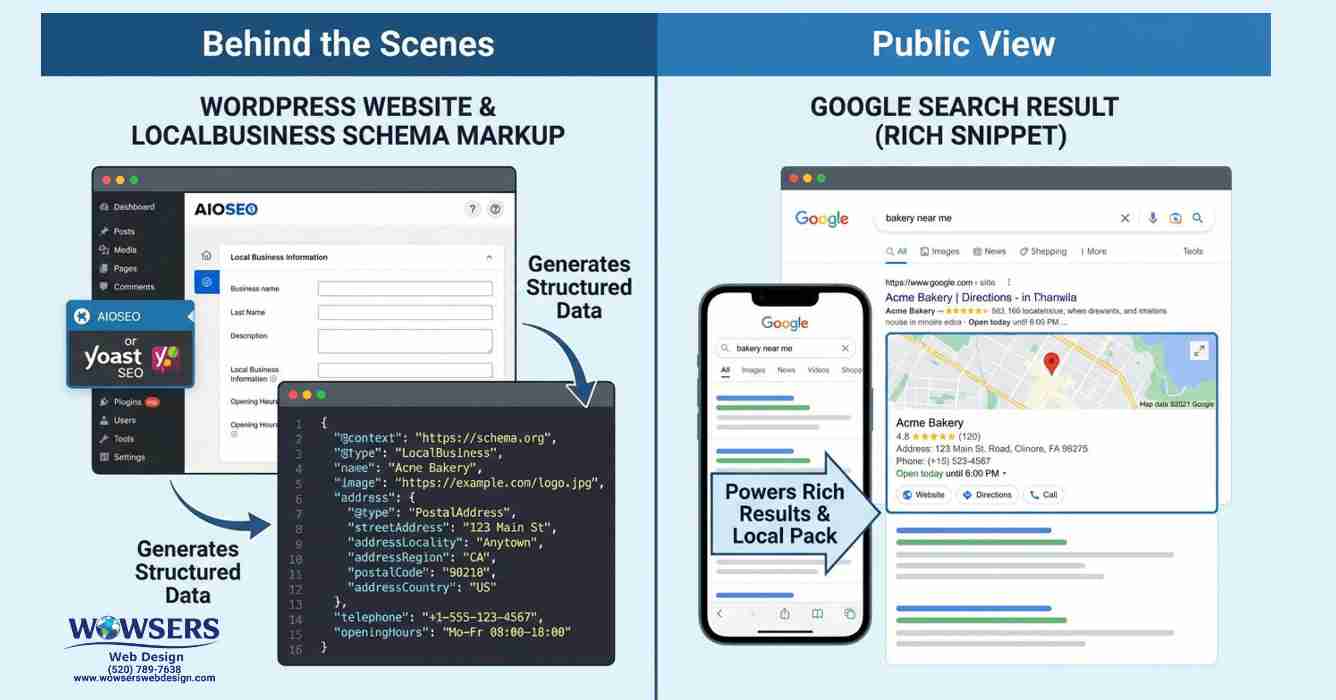
If you run a local business, you already know the real goal. You want the right people to find you, trust you, then call, book, or ask for directions. LocalBusiness schema markup helps with that because it gives Google extra, structured details about your business, kind of like a clearly labeled file folder instead of a pile of loose papers.
The good news is that most small businesses don't need custom code to get solid results. In WordPress, you can usually handle the "easy wins" with Yoast SEO plus Yoast Local SEO. You fill in key fields once, and the plugin outputs the structured data for you.
This post sticks to practical setup steps and common mistakes. If you want the bigger picture of how on-page content supports local visibility, start with Tucson SEO website content.
What LocalBusiness schema does for you (and what it cannot do)
The quick benefits, better map visibility, richer results, and more trust
Schema markup doesn't "convince" Google you're great. It helps Google understand what's already true. When your business info is clear and consistent, search engines have an easier time matching your site to local searches.
LocalBusiness schema is most helpful when it backs up the basics people care about right now, like:
- Your name, address, and phone number (NAP)
- Your opening hours, including closed days
- Your business category, like "Plumber" or "DentalClinic"
- Your map location, so directions make sense
In search results, that clarity can support richer features people notice fast, like hours displayed next to your listing, a clickable phone number on mobile, or stronger "near me" matching when someone is close to your address. Think of schema like good signage on a storefront window. It won't fix a bad location, but it helps customers understand what's inside.
Results vary, and Google never promises rich results. Still, clean data tends to reduce confusion, which helps clicks and calls over time. For extra context on common schema types used in local SEO, BrightLocal's overview of local SEO schema templates is a useful reference.
The common myths, schema is not a magic ranking switch
Schema markup won't replace the work that actually builds local visibility. You still need a solid Google Business Profile, real reviews, helpful service pages, and content that matches what searchers want.
Here are the two myths that cause the most frustration:
First, schema is not a "rank me higher" button. It mainly improves understanding and can make you eligible for certain enhancements. Second, schema can't cover up messy signals. If your site says you're open until 6, your footer says 5, and your schema says 7, Google has to guess which one is right.
A simple rule keeps you out of trouble: your on-page contact info, your schema, and your Google Business Profile should all match.
That's also why keyword intent still matters. If your pages don't align with what people type into Google, structured data won't save the day. If you want a clearer way to plan pages around search behavior, see Tucson keyword strategy.
The easy setup path in WordPress using Yoast SEO and Yoast Local SEO
15-minute checklist: the fields that matter most (easy wins first)
If you want fast progress, focus on the fields that influence calls, direction requests, and trust. With Yoast SEO, set your basic organization info (name, logo, and social profiles). Then, in Yoast Local SEO, fill out the location details that make you "real" to both Google and customers.
Here's a quick, high-impact checklist:
- Business name: Match your real-world name and your Google Business Profile.
- Business type: Pick the most accurate LocalBusiness type available (for example, Restaurant, Attorney, Dentist).
- Logo: Use a clean, square version if you have one.
- Phone number: Use your main number, not a tracking number that changes often.
- Full address: Include suite numbers and consistent formatting.
- Hours per day: Use exact hours, mark closed days, and update holiday hours when needed.
- Latitude and longitude: Grab these from Google Maps (right-click on the map pin, then copy the coordinates).
- Website URL: Make sure it's correct and uses your preferred version (https).
- sameAs profiles: Add the social profiles you actually use, not every platform you once created.
- Area served (if applicable): Helpful for service businesses that travel to customers.
Yoast handles the structured data output behind the scenes, so you avoid the risks of hand-editing JSON-LD. If you're still deciding on WordPress as your platform, why WordPress breaks down the practical reasons many small businesses stick with it.
If you want the official Yoast setup flow, their configuration guide for Local SEO walks through where each setting lives.
Single location vs multiple locations: how to avoid duplicate or messy schema
Single-location businesses are simpler. In most cases, you set one primary location and make sure the contact page (and often the homepage) clearly shows the same NAP details. That's usually enough.
Multiple locations need a cleaner structure, or things get confusing fast. The easiest approach is:
- Create a dedicated page for each location (each with its own address, phone, hours, and embedded map).
- Make sure each location page is internally linked in a clear "Locations" section.
- Avoid copying the exact same paragraph and swapping only the city name. Add details that are true for that location, like parking notes or neighborhood landmarks.
Yoast Local SEO supports multi-location setups and can output location-specific structured data. The bigger challenge is keeping everything updated over time. Hours change, phone numbers get replaced, and businesses move suites. That's where a routine matters, and ongoing support can help prevent stale info from lingering. If you want a structured way to keep your local details current, see the Tucson SEO maintenance plan.
How to test, fix, and keep your schema accurate over time
A simple test routine: check, spot errors, update, retest
After you set up Yoast Local SEO (or after any change), test the pages that matter most, usually your homepage, contact page, and each location page.
A simple routine looks like this:
Start by running a rich result or schema validation test on the page. Next, confirm the LocalBusiness type is what you expect (not just Organization). Then verify the address, phone, and hours show correctly, and watch for duplicates (two LocalBusiness items on one page can happen with overlapping plugins). After updates, retest the same URLs.
Google doesn't guarantee enhancements, even with perfect markup. However, errors and mismatches can block eligibility and can also create trust issues for real customers who show up at the wrong time.
For a broader view of how local SEO elements work together on WordPress sites, Pressable's WordPress local SEO guide for SMBs is a solid, non-hype overview.
The top mistakes that break local trust (and how to prevent them)
Local schema problems often look "small" in WordPress settings, but they create big real-world friction. Someone drives across town and finds a locked door, or they call a disconnected number. That's not an SEO issue, it's a trust issue.
The most common problems come from inconsistency:
- Address formatting that changes across pages, missing suite numbers, or outdated locations.
- Phone numbers that differ between header, footer, contact page, and schema.
- Old hours that don't match your Google Business Profile, especially around holidays.
- Using a PO box as the business address when customers expect a physical location.
- Adding LocalBusiness schema to every page, which can create duplicates and mixed signals.
- Forgetting to set (or correctly describe) a service area for mobile businesses.
If a customer can't confirm your hours in five seconds, they're more likely to pick the next listing.
Keep one source of truth inside Yoast, then make sure your visible contact info matches it. If you're not sure your site has the basics covered (forms, contact info, process, and what to expect), the Wowsers Web Design FAQs are a helpful next step.
Conclusion
LocalBusiness schema markup works best when it supports what you already do well. Fill in the Yoast Local SEO fields completely, add accurate hours and geo coordinates, and keep your NAP consistent everywhere. Then test your key pages after changes so errors don't sit unnoticed for months. Those are the easy wins that help real people call you, find you, and trust you faster.
If you're a Tucson business and you'd like help tightening up local visibility while keeping your site details updated, it's worth getting a second set of eyes on your setup before the next busy season hits.
About Wowsers Web Design
Wowsers Web Design is a Veteran/Woman owned, Tucson Web Design Company. We build affordable WordPress websites for small businesses, home-based businesses and non profit organizations. Transparent Pricing - No Surprises - No Hidden Fees. We have clients throughout Tucson AZ and across the United States.
Check out our affordable WordPress Web Design Packages.
Learn more about Splitting Your WordPress Website Design Payments
Check out our WordPress Website Maintenance Plans
Please take a moment to review the Wowsers Web Design FAQs
Give us a call today (520) 789-7638 or Send us an email if you have questions.
Read our Testimonials
Please visit our Link Tree Page.